Print a Test Page for Every Printer
What is this website about ?
Print free, high-quality print test page to check print quality, color accuracy, black ink, CMYK colors, alignment, and nozzle performance. Our printable test pages work with most inkjet and laser printers, including HP, Canon, Epson, Brother, Lexmark, Xerox, Samsung, and many more.
Looking for a different test print online? Can’t find what you need? Let us know and we’ll do our best to add it.
Print an all-in-one diagnostic page featuring Cyan, Magenta, Yellow, and Black (CMYK) page test print to verify color accuracy, detect printing issues, and ensure your HP printer delivers consistent, high-quality results.
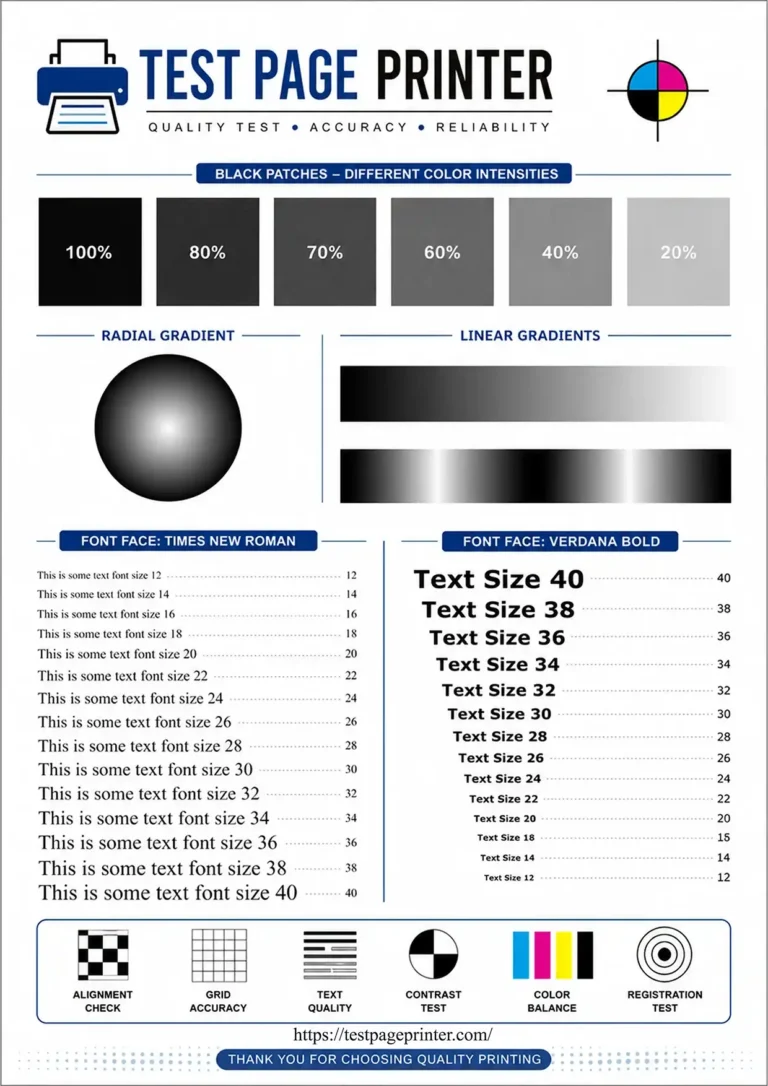
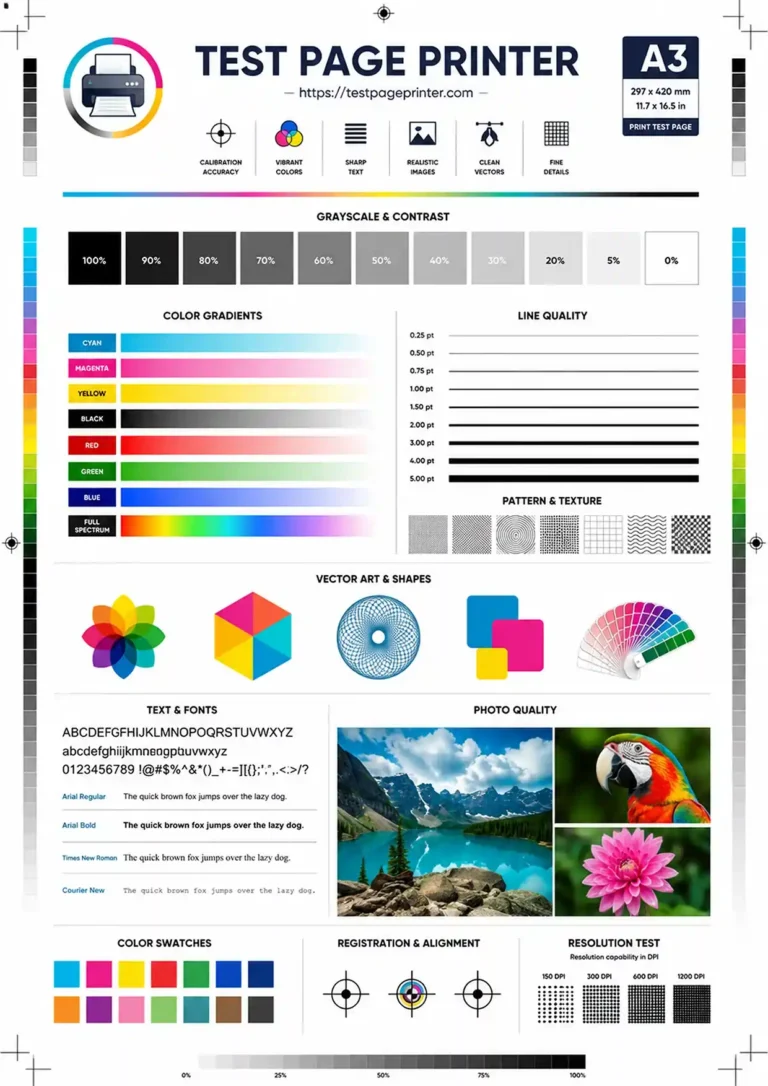
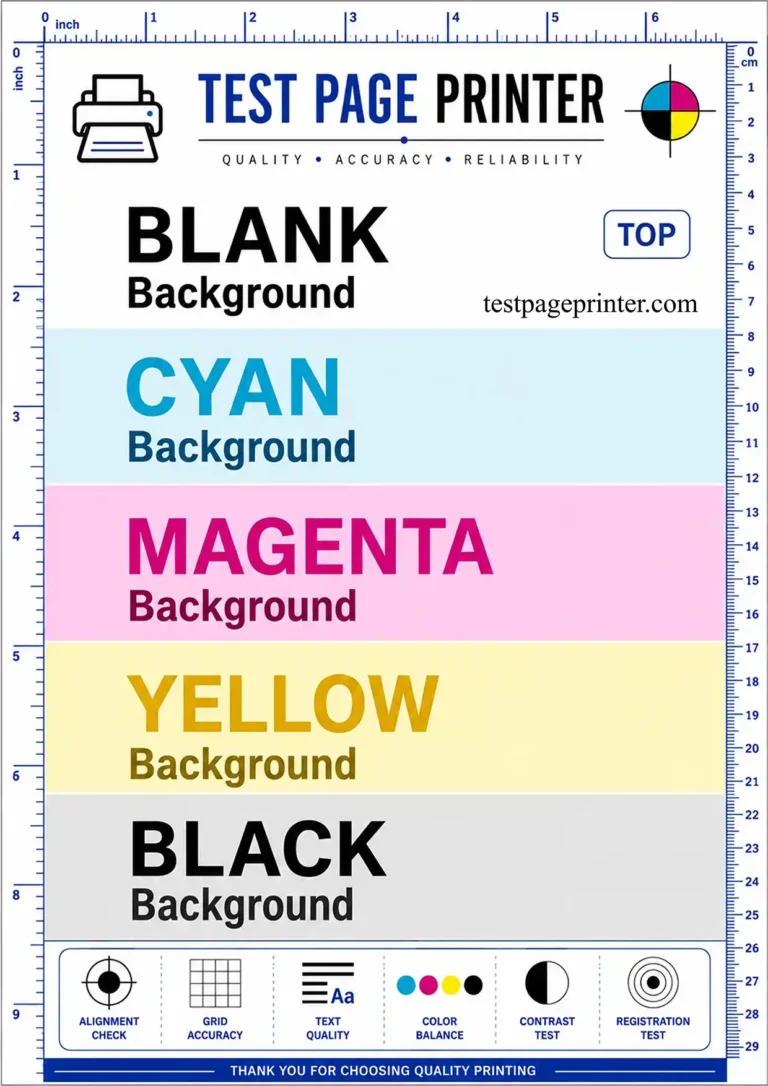
Why Use Our Free Printer Test Pages?
Skip the guesswork. A printer test page shows you exactly what’s wrong in under 30 seconds, no software to install, no account, and no wasted ink printing a full document you don’t need.
Every test page here is built around one goal: give you a diagnostic you can read at a glance, compare against a known-good result, and act on immediately.
|
Test Page |
What It Reveals |
Best For |
|
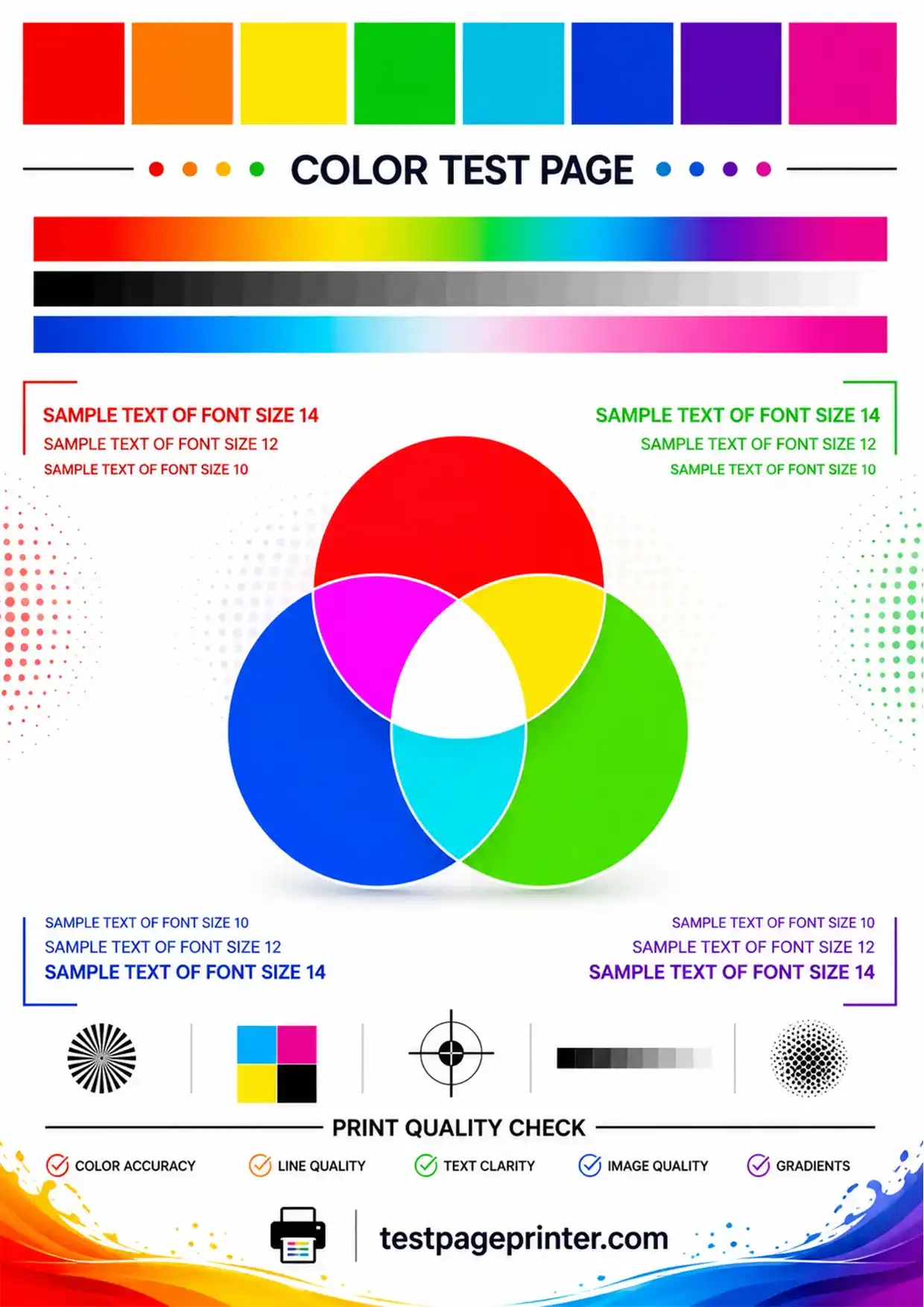
Color Test Page |
Uneven CMYK output, color shifts, saturation loss |
Designers, photographers, offices printing in color |
|
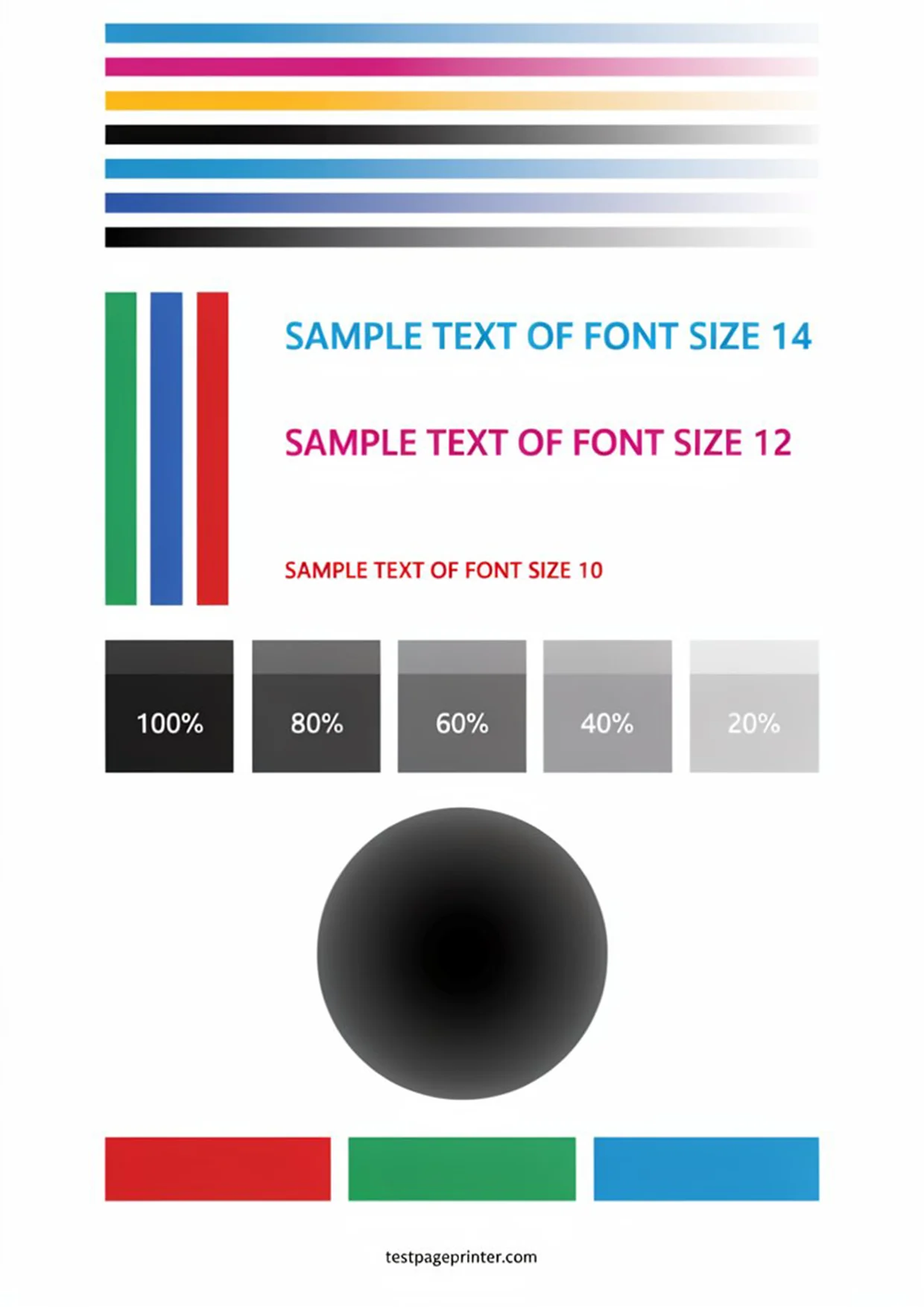
Black & White Test Page |
Faded or streaky ink/toner, weak contrast |
Text-heavy printing, invoices, schoolwork |
|
CMYK Test Page |
Which specific channel is failing, cyan, magenta, yellow, or black |
Pinpointing the exact cartridge or nozzle at fault |
Run the one that matches your symptom, or all three for a full health check before an important print job. Whether you’re printing office documents, school assignments, photographs, brochures, engineering drawings, or marketing materials, catching a print problem early saves both time and ink.
What Is a Printer Test Page?
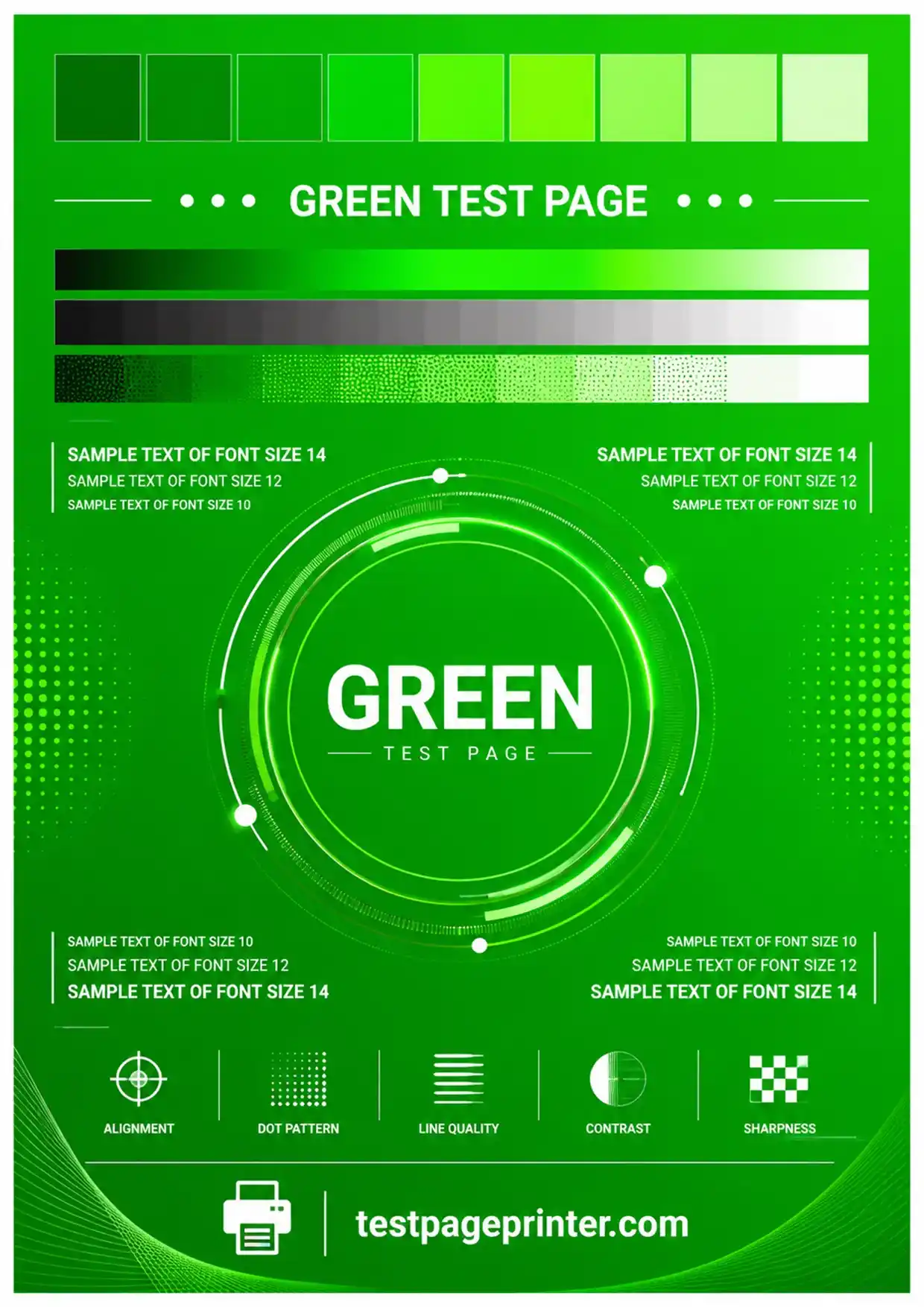
A printer test page is a printable diagnostic document built from solid color blocks, gradients, grayscale bars, fine lines, geometric shapes, and alignment patterns. Unlike an everyday document, it’s engineered specifically to expose problems that don’t show up in normal printing, a missing color channel, a clogged nozzle, or a misaligned print head can all hide inside ordinary text but jump out immediately on a structured test pattern.
Because the patterns are standardized, a test page makes troubleshooting far faster and more reliable than printing a random photo and hoping the issue is obvious.
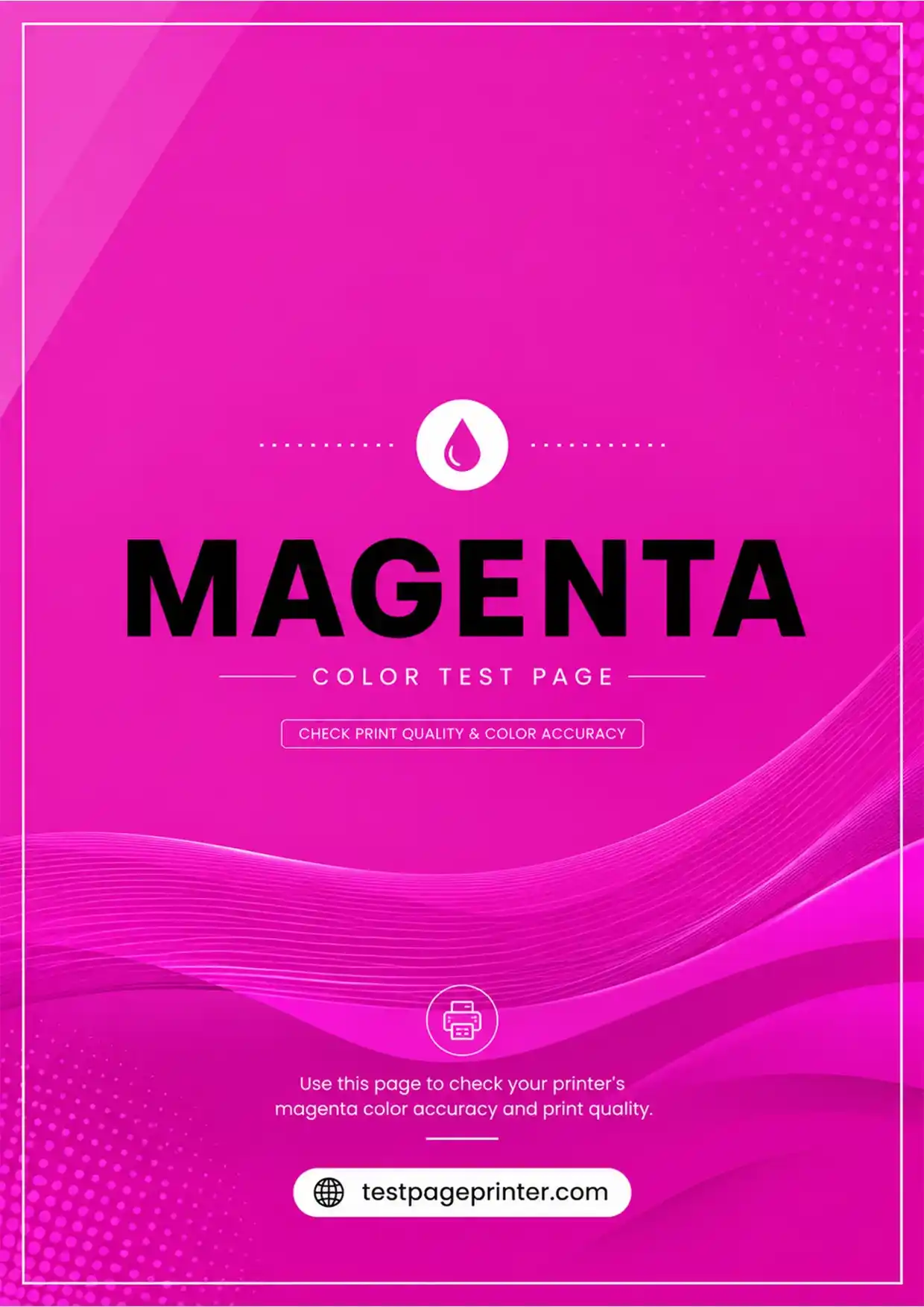
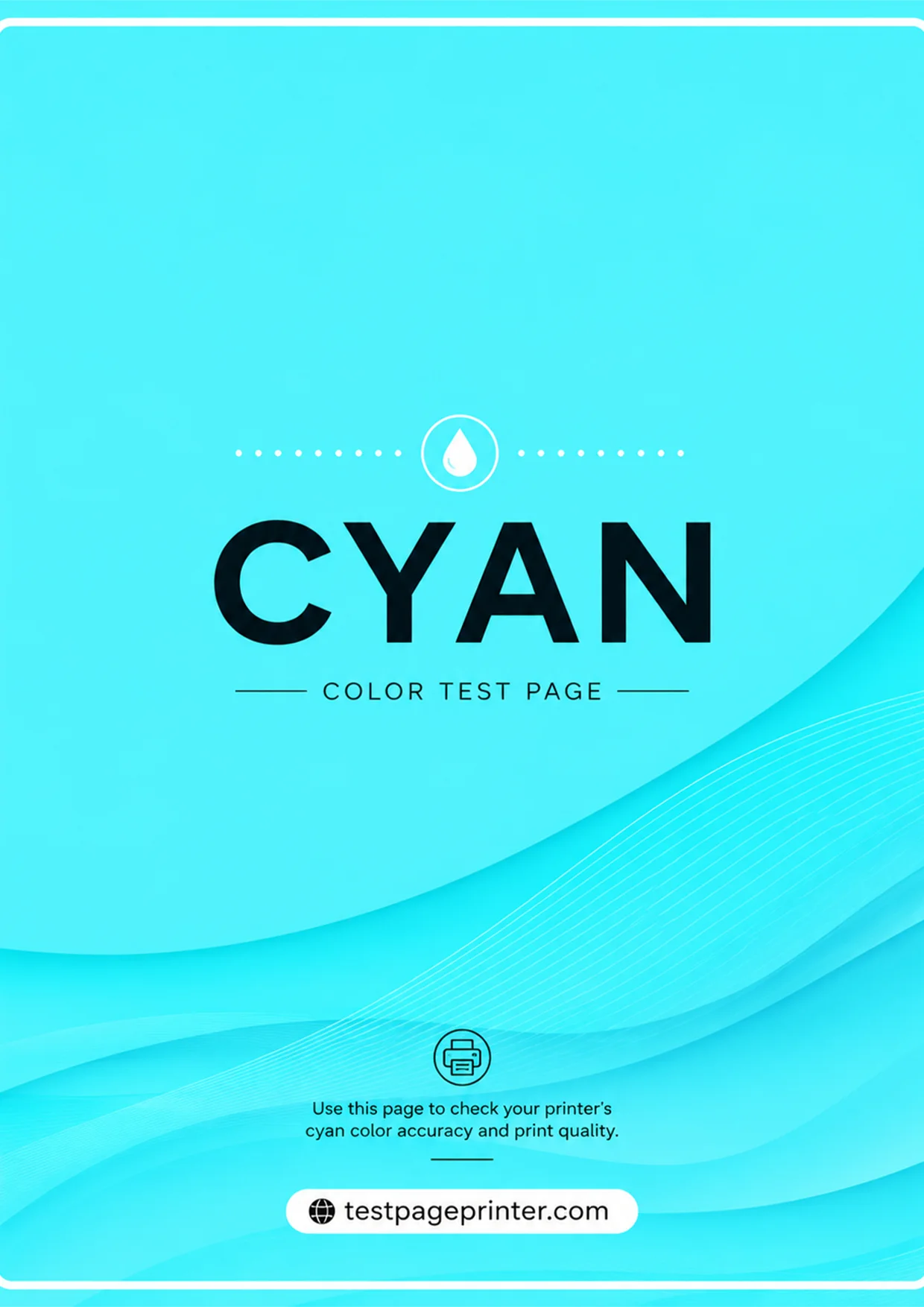
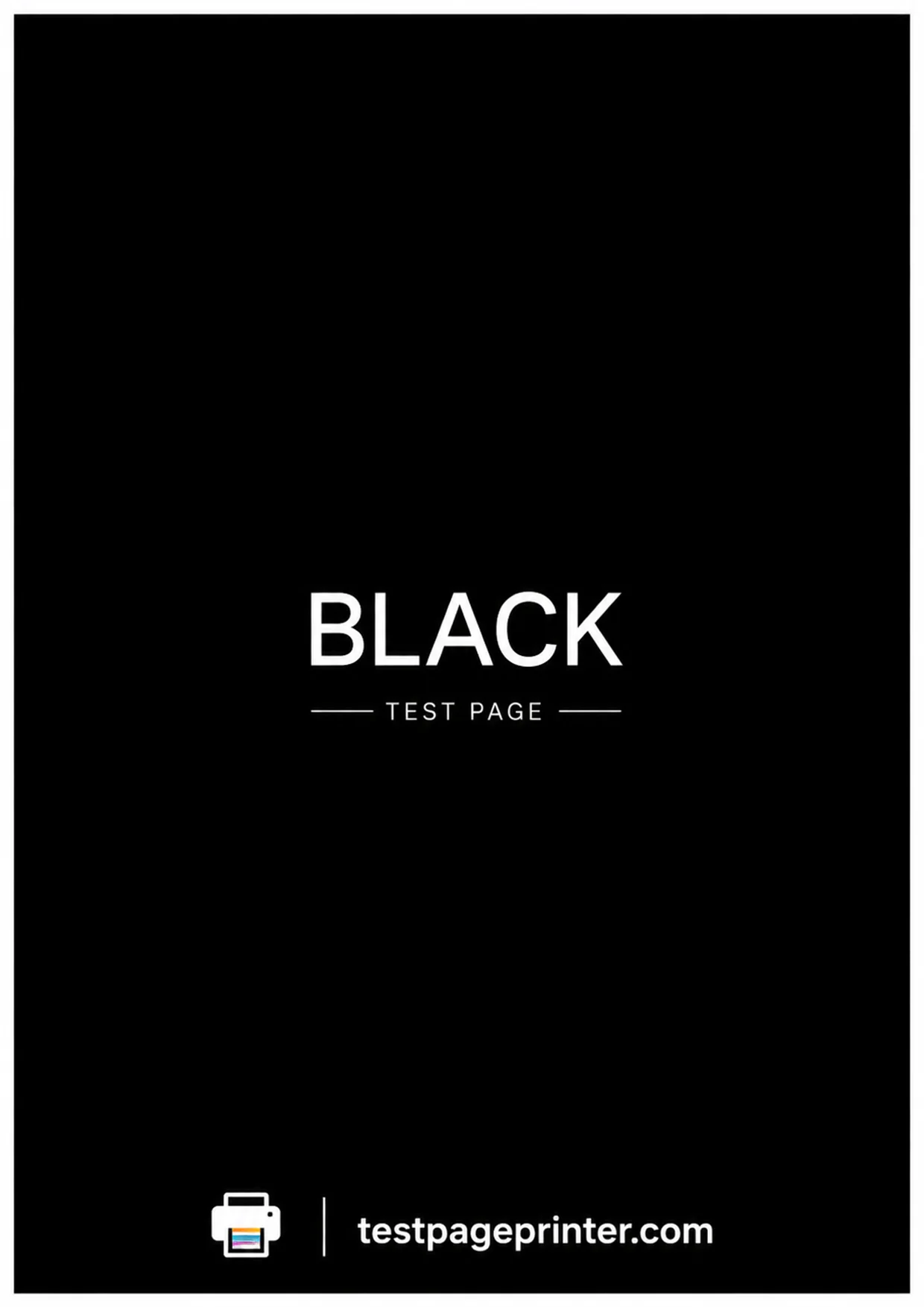
Types of Printer Test Pages


How to Use a Printer Test Page
Step 1: Pick the right test. Color for CMYK accuracy, Black & White for ink/toner density, CMYK for isolating a specific channel, Alignment for sharpness issues, A3 for wide-format printers.
Step 2: Load the correct paper. Clean, flat A4 or Letter paper for most home/office printers; A3 for wide-format devices.
Step 3: Print at 100% scale. Don’t let the printer auto-fit or scale the page — alignment patterns and measurement guides only mean something at true size.
Step 4: Compare, don’t just glance. Hold your printed page next to a known-good reference and look specifically for missing colors, streaks, faded text, uneven blocks, blurry edges, banding, or color shifts. Small defects are often the earliest sign that maintenance is due.
Troubleshooting: Symptom → Cause → Fix
|
Symptom |
Likely Cause |
Recommended Action |
|
Missing color (C, M, Y, or K) |
Empty cartridge, clogged nozzle, damaged cartridge |
Run a nozzle cleaning cycle, then reprint a CMYK test page |
|
Faded or washed-out print |
Low ink/toner, draft mode enabled, dirty print head |
Check ink levels, disable draft mode, run a print quality test |
|
Horizontal white banding |
Clogged or partially blocked nozzles |
Run the built-in nozzle cleaning utility, retest |
|
Vertical streaks |
Dirty rollers, dust, scratched drum, damaged toner cartridge |
Clean the paper path; replace toner/drum if streaking persists |
|
Blurry or fuzzy text |
Misaligned print head, low resolution setting, dirty encoder strip |
Run a printer alignment test page and increase print quality setting |
|
Wrong colors (e.g., blue prints as purple) |
Incorrect color profile, missing ink channel, driver conflict |
Reinstall/update printer driver, recalibrate with a color test page |
Printer Maintenance Tips
- Clean print heads: most inkjet printers include a built-in cleaning utility that restores ink flow after a clog.
- Replace ink or toner early: waiting until a cartridge is completely dry degrades quality before the printer warns you.
- Keep the printer physically clean: dust and ink residue in the paper path cause smudging and jams over time.
- Run alignment after cartridge changes: a fresh cartridge almost always needs a fresh alignment pass.
- Use quality paper: cheap stock absorbs ink unevenly and can leave lint inside the printer.
- Print something every few weeks: idle inkjets are the most common cause of dried, clogged nozzles.
Printer Types We Support
Inkjet printers: vibrant color and photo quality, but prone to clogged nozzles if left idle. Use our test pages to check nozzle performance, color accuracy, and grayscale gradients.
Laser printers: sharp text and fast output, with fewer but still real failure points: toner streaks, dirty drums, uneven coverage. Our tests isolate whether the issue is the cartridge, the drum, or the transfer unit.
Thermal printers: used for labels, receipts, and barcodes. No ink or toner involved, but print head heat settings and paper feed can still drift out of spec. Our thermal test pages check barcode clarity, print density, and alignment.
Compatible brands: HP, Canon, Epson, Brother, Lexmark, Xerox, Samsung, Ricoh, Kyocera, Dell, Pantum, Konica Minolta, Sharp, Toshiba, OKI, and select Zebra thermal models – across ink cartridge, ink tank, toner, and thermal printing technologies.
Printer Color Calibration
Accurate color reproduction matters for photographers, designers, marketers, and anyone whose printed output represents their work to a client. Our color calibration test page lets you compare your printed result against expected values across Cyan, Magenta, Yellow, Black, RGB patches, gradients, skin tones, and neutral grayscale – so you can tell at a glance whether your printer is holding calibration or drifting.
About Our Test Pages
Every test page on this site is built as a structured diagnostic, not a random image pulled from the web. Patterns are designed around the same principles professional print shops use to verify output before a production run: isolated color channels, grayscale gradients, and alignment markers you can measure against.
We keep the tool free and usable without an account because the goal is simple, help you fix a print problem in the time it would’ve taken to search for one. Prefer to read in German? Visit our drucker-testseite for the same free printer test pages in German.
Have feedback, a printer brand we’re missing, or a test page you wish existed? Email us, we read every message.